Guest Wi-Fi that signs itself in
Hotels, airports, cafes and offices all put a sign-in page between you and the internet. WiFi Web Login fills it in for you.
It notices the portal the moment you connect, enters what you taught it, and gets you online — usually before you have taken your phone out of your pocket.
For Android. Your username, password and recorded steps stay on your device.
What is a captive portal, and why does Wi-Fi keep asking you to sign in?
A captive portal is the sign-in page a Wi-Fi network puts in front of the internet. Join the Wi-Fi in a hotel, an airport, a coffee shop, a shopping centre, a train or bus, a university campus, a hospital or an office, and your browser is redirected to a page that wants something before it will pass any traffic: a tick in an "I agree to the terms" box, a username and password, or a whole form asking for your name, email address and postal code.
Until that page is completed you are connected but not online. Android marks the network as having no internet, apps time out and messages will not send. Captive portals are how almost all guest Wi-Fi and public Wi-Fi authenticates people, because it needs no shared WPA password — which is exactly why you meet them everywhere, and why no two of them behave quite the same.
They also forget you. Plenty of portals expire after a few hours, so the same form reappears on the same network, sometimes more than once a day. Android will not complete it for you. It only tells you a sign-in is required and leaves the typing to you.
WiFi Web Login — published on Google Play as WiFi Web Login — is an automatic captive portal login app for Android built for exactly this. It spots the portal the moment you connect, fills in what you have taught it for that particular network, submits the form, and checks you are genuinely online afterwards. All of it in the background, without you opening anything.
It spots the portal
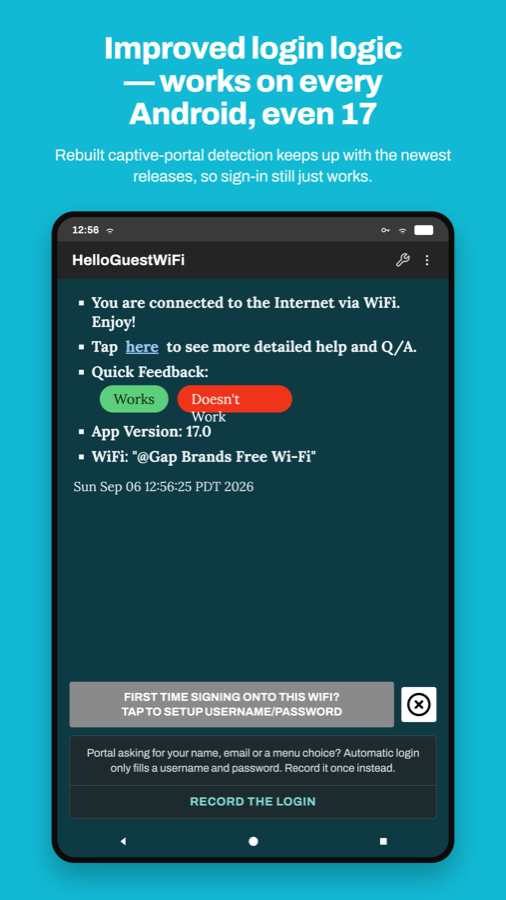
The app checks whether the network is really online. If a portal is holding traffic back, it opens the sign-in page itself instead of waiting for you to notice.
It fills the form
Simple portals need a username and password, and it knows those. Complicated ones can be recorded once — every field, dropdown and checkbox — and replayed afterwards.
It works in the background
Reconnect to a network you have already taught it and the sign-in happens on its own. You get a notification telling you it is done.
Built for the portals that actually give people trouble
Not every sign-in page is a username and a password. These are the parts of the app that deal with the rest of them.
Record a complicated sign-in once
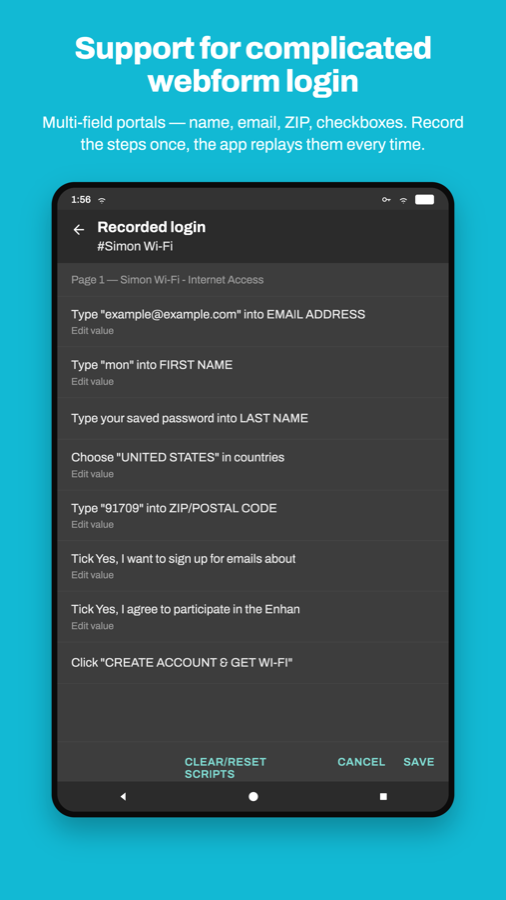
Airport and mall portals often want a full name, an email address, a postal code, a dropdown and a couple of checkboxes. Tap Record the login, sign in the way you normally would, and the app watches what you do.
- Every step is saved as a plain sentence you can read back
- Edit any value later without recording the whole thing again
- Your saved username and password are referenced, not copied into the recording
- Hidden and session fields are deliberately skipped, so the portal still gets fresh ones
Every network you have taught it, in one list
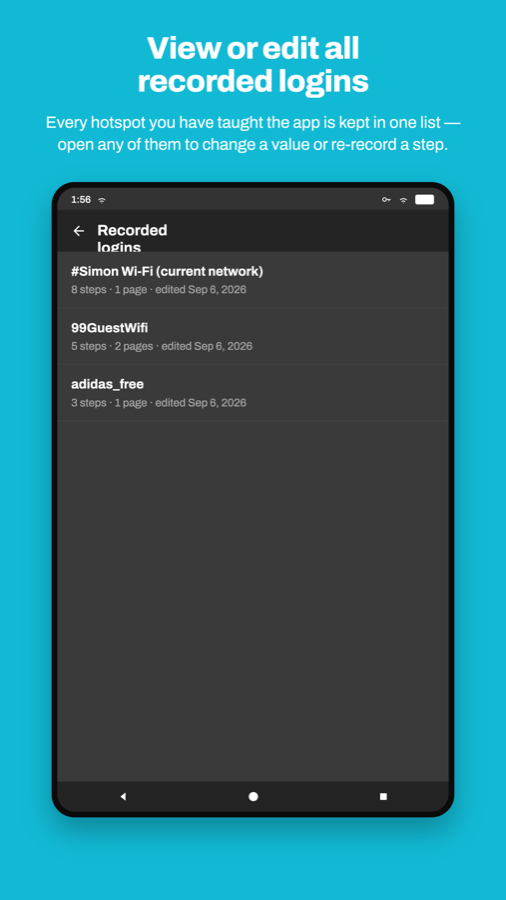
Recorded sign-ins are kept per network. The list shows all of them with how many steps each holds and when you last changed it.
- Open any network's recording, even one you are not connected to — fix the airport's sign-in from your sofa
- Swipe to delete one you no longer want
- Delete a recording and that network simply goes back to automatic sign-in
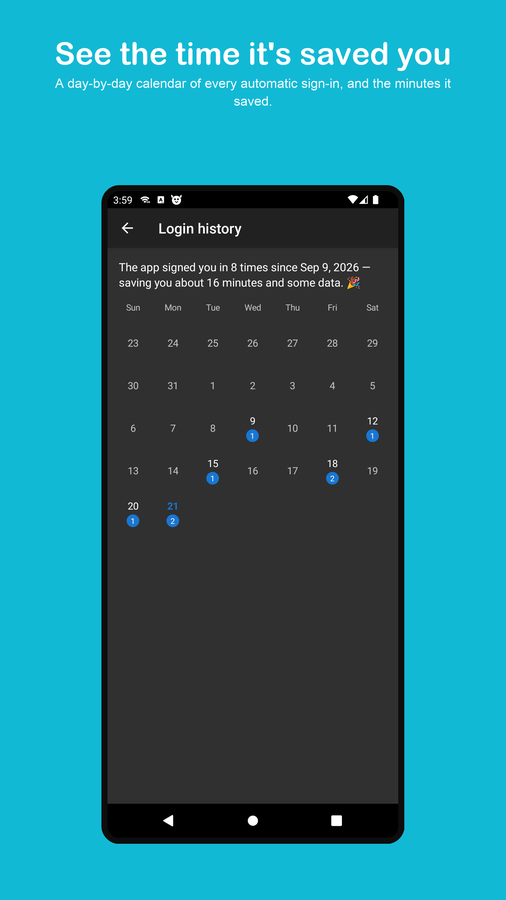
See the time it has saved you
Every automatic sign-in is logged to a day-by-day calendar, with a running tally of how often the app has signed you in and roughly how much time that saved.
- A count on each day, so a busy travel week is obvious at a glance
- Tap a day to see which networks and at what times
- A friendly total since tracking began, in place of a bare number
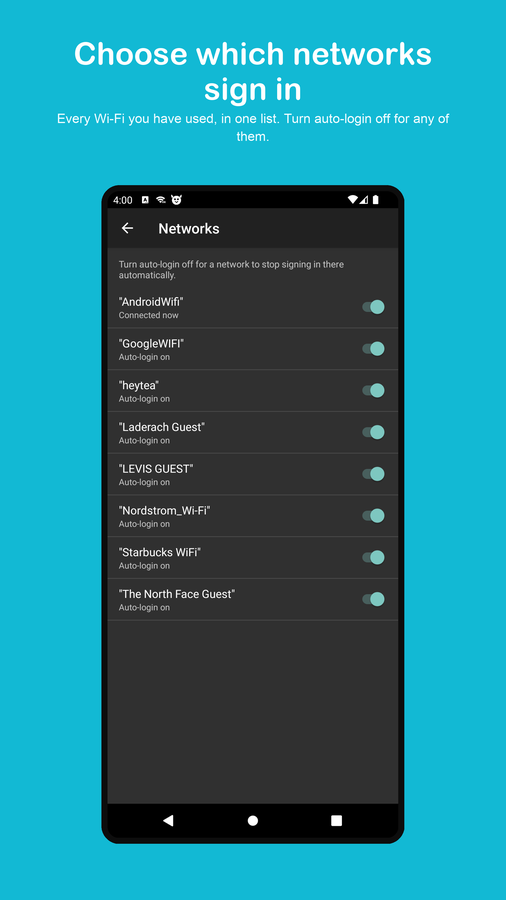
Choose which networks sign in on their own
Every Wi-Fi you have connected to gathers in one list, each with a single switch. Until now auto-login could only be changed for the network you were standing on.
- Turn automatic sign-in on or off per network, any time
- Built from the networks in your history and your recordings
- One switch covers both the foreground and background sign-in
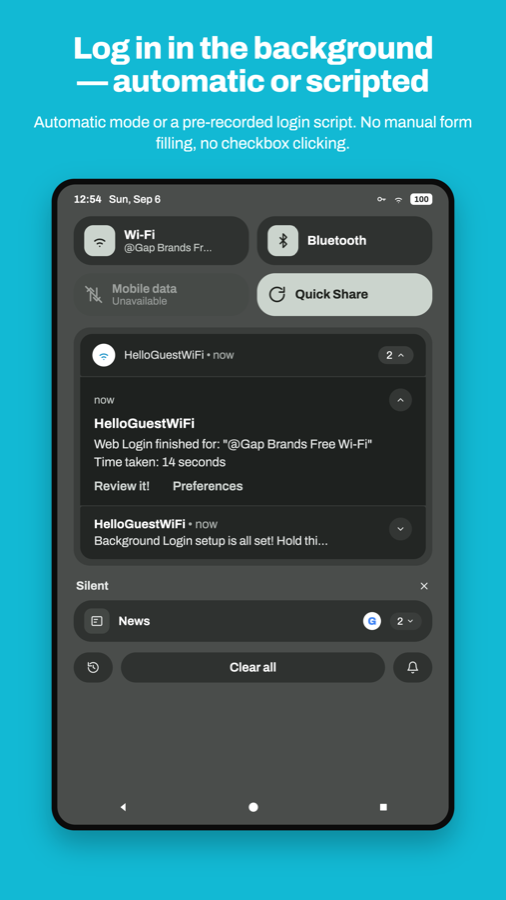
Signs in without being opened
Once a network is set up you do not need to launch anything. Connecting is enough — the app does the sign-in in the background and tells you when you are online.
- Runs on connect, so it is done before you go looking for it
- The notification reports the network and how long the sign-in took
- Can be switched off per network, or turned off entirely
Keeps up with new Android releases
Captive portal detection is one of the parts of Android that changes most between versions. The detection logic is kept current so sign-in keeps working on the newest releases rather than quietly breaking.
- Recognises portals that answer with a redirect instead of an error
- Copes with networks that take their time coming up
- Tells you when a VPN is the thing blocking sign-in, which is otherwise very hard to guess
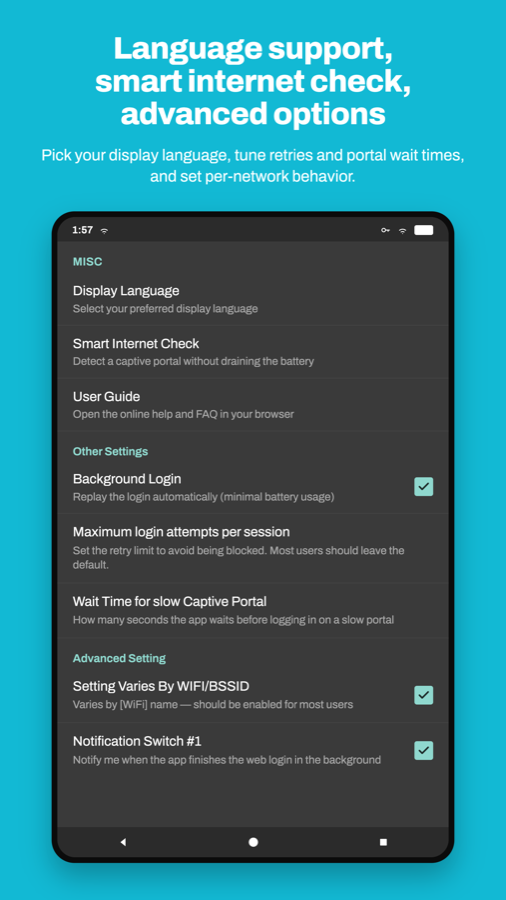
Settings for when a network is awkward
Most people never open these. They are here for the one hotel whose portal takes fifteen seconds to load.
- Wait time for slow portals and a retry limit per session
- Settings vary by network — different credentials for different Wi-Fi
- Choice of internet check method, and a smart detection option
- Display language, and a switch for the success notification
What people say on Google Play
Quoted exactly as they were left on the Play Store listing.
All in all very helpful keeping you connected hasslefree. Edit: After the latest bugfixes 260903 it works with VPN again. Great work and thanks for keeping it relevant!
Almost perfect, just remember to follow all the setup instructions, give unrestricted background usage access etc. etc. saved me a bunch of mobile data.
The app does exactly what it's supposed to do, exactly the way it's supposed to do it. no fuss, no problems. it's made a huge difference in my time away from home. I can actually get messages when they are sent to me instead of when I happen to remember to log in to the Wi-Fi again.
love this app for drive-by Tim Hortons login for using their mobile app in the drive thru. no need to use mobile data as this app connects automatically and fast so your connected by the time your at the window and don't have to unsafely connect to wifi.
Five minutes, once per network
The first sign-in on a given Wi-Fi is the only one you do by hand.
Install the app
Get WiFi Web Login from Google Play and open it once so it can set itself up.
Allow location access
Android only reveals which Wi-Fi network you are on to apps holding location permission. The app needs the network name to keep your settings separate per network.
It is not used to track where you are.
Enter your sign-in details
Open Preferences and fill in the username and password the portal asks for. On networks that only want a tick and a Connect button you can leave them empty.
Let it run in the background
Turn on Background Login in Preferences, and set the app's battery usage to Unrestricted in Android's own settings.
Android will otherwise stop the app while your screen is off, which is exactly when you want it working. Step-by-step guide ›
For a complicated portal, record it
Connect to the network, and when the sign-in page appears tap Record the login at the bottom of the screen. Fill the form in as usual, then tap Stop recording.
Your steps are saved for that network and replayed next time.
Reconnect and forget about it
From here on, joining that Wi-Fi is enough. You will get a notification once you are online.
Check your recording before you rely on it. Open All recorded logins from the menu, tap the network, and read the steps back. They are written as plain sentences — "Type your saved email into Email address" — so a wrong value is easy to spot and fix before you are standing in an airport.
Common questions
The things people write to support about most often.
Why does the app need location permission?
Because Android will not tell an app the name of the Wi-Fi network it is connected to unless that app holds location permission. That is Android's rule, not a choice the app makes.
The network name is what keeps everything separate — your hotel credentials do not get used at the airport, and a recording made on one network is never replayed on another. Without the permission the app cannot tell networks apart and per-network settings stop working.
Your location is not collected, stored or sent anywhere.
Nothing happens when I connect. Why is it not signing in automatically?
Almost always battery optimisation. Android suspends background apps aggressively, and the sign-in has to run at the moment you connect — often with the screen off.
- Set the app's battery usage to Unrestricted in Android's app settings
- Check Background Login is switched on in Preferences
- Confirm the network is not set to Manual mode in the app's menu
Some manufacturers add a second layer of their own — look for a battery, power saving or "protected apps" list in your phone's settings and allow WiFi Web Login there too.
The portal wants my name, email and a postal code. Can the app handle that?
Yes — that is what recording is for. A username and password field is all the automatic mode can fill on its own.
Connect to the network, wait for the sign-in page, tap Record the login, and complete the form the way you normally would. Every field you type, every dropdown you pick and every box you tick is saved. Tap Stop recording when the form is complete and it will be replayed on your next visit.
My recorded login stopped working. What now?
Portals get redesigned. When a recording stops getting you online the app notices after a few failed visits, removes it, and quietly goes back to automatic sign-in so you are never left stuck with a recording that cannot work.
Just record it again on your next visit. You can also open All recorded logins, delete the old one yourself and start fresh.
Can I fix a recording when I am not on that network?
Yes. Open All recorded logins from the menu and pick any network in the list, connected or not. You can edit any saved value or delete steps from anywhere.
This is deliberate — the moment you are least able to sit and fix a sign-in is while you are standing in the airport it belongs to.
The app says a VPN is blocking sign-in.
A captive portal has to be able to see your traffic to know you have signed in. Most VPNs stop that, so the sign-in page either never loads or never takes effect.
Turn the VPN off, reconnect to the Wi-Fi, let the sign-in finish, then turn the VPN back on. Many VPN apps have an "allow captive portal" or "trusted networks" option that handles this for you.
Where are my password and recorded steps kept?
On your phone, in the app's own private storage. They are not uploaded and there is no account to create.
Recordings store a reference to your saved username and password rather than a second copy of them, so changing your credentials in Preferences updates every recording that uses them.
This hotel portal is very slow and the sign-in gives up too early.
Open Preferences and look under the advanced settings for the wait time for slow captive portals, and the maximum number of login attempts per session. Raising the wait time helps on networks that take a long while to produce the sign-in page.
Does it work on every network?
It works on the great majority of ordinary guest networks — hotels, cafes, airports, shops, offices and public Wi-Fi.
Some portals cannot be automated by anything: those needing a code sent by SMS or email, a payment, a room number checked against a booking, or a CAPTCHA you must solve. If a human has to make a decision, the app cannot make it for you.
How do I report a problem so it can actually be fixed?
Use the built-in report — it carries far more detail than a description can.
Open Preferences, scroll to MISC and tap Send Debug Info. The app returns to the main screen, captures what it is seeing on the current portal, and hands it to your mail app addressed to support.
Send it while you are still on the network that is failing. That is when the report is worth something.
Stuck on a network we have not seen?
Portals vary enormously and new ones appear constantly. If one is beating the app, a report from the network itself is the fastest route to a fix.
Send a diagnostic report
This is by far the most useful thing you can do, because it captures the sign-in page the app is struggling with.
- Connect to the Wi-Fi that is not working
- Open Preferences in the app
- Scroll to MISC and tap Send Debug Info
- Send the mail that opens, adding anything you noticed
It reaches the same address as below, with the technical detail already attached.
Or just write to us
Questions, portals that will not cooperate, feature ideas and bug reports are all welcome.
Telling us the name of the network, your phone model and your Android version saves a round trip.
Stop typing the same form
Teach it your networks once and getting online becomes something that just happens.